---
title: Connect from Prisma to Neon
subtitle: Learn how to connect to Neon from Prisma
enableTableOfContents: true
redirectFrom:
- /docs/quickstart/prisma
- /docs/integrations/prisma
- /docs/guides/prisma-guide
- /docs/guides/prisma-migrate
updatedOn: '2026-02-01T11:47:48.278Z'
---
Prisma is an open-source, next-generation ORM for Node.js and TypeScript. This guide shows you how to connect a Prisma application to Neon using the recommended setup with the Neon serverless driver adapter.
## Prerequisites
- A [Neon account and project](/docs/get-started-with-neon/signing-up)
- Node.js 18+ installed
- A Node.js or TypeScript project (or create a new one)
## Setup
### Step 1: Install dependencies
```bash
npm install @prisma/client @prisma/adapter-neon dotenv
npm install prisma --save-dev
```
### Step 2: Get your connection strings
From your Neon Console, click **Connect** and copy both connection strings:
- **Pooled connection** (has `-pooler` in the hostname) — for your application
- **Direct connection** — for Prisma CLI commands (migrations, introspection)
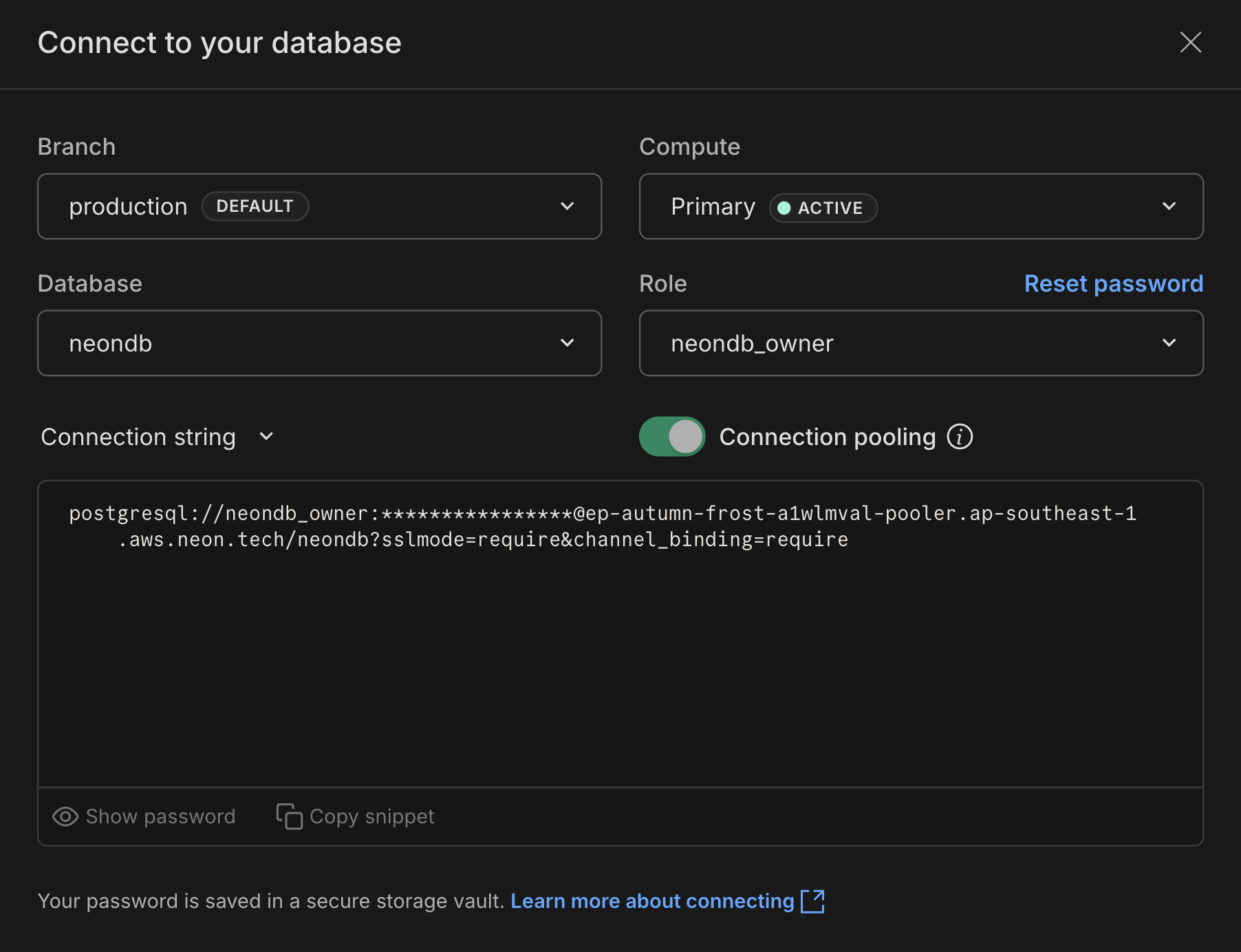
Add them to your `.env` file:
```ini shouldWrap
# Pooled connection for your application
DATABASE_URL="postgresql://[user]:[password]@[endpoint]-pooler.[region].aws.neon.tech/[dbname]?sslmode=require"
# Direct connection for Prisma CLI
DIRECT_URL="postgresql://[user]:[password]@[endpoint].[region].aws.neon.tech/[dbname]?sslmode=require"
```
The pooled connection has `-pooler` in the hostname. The direct connection does not. Both are available in your Neon Console.
### Step 3: Configure your Prisma schema
If you don't have a Prisma schema yet, run `npx prisma init` to create one. Then update `prisma/schema.prisma`:
```prisma
generator client {
provider = "prisma-client-js"
output = "../src/generated/prisma"
}
datasource db {
provider = "postgresql"
}
model User {
id Int @id @default(autoincrement())
email String @unique
name String?
createdAt DateTime @default(now())
}
```
In Prisma 7+, do not include a `url` property in the datasource block. The connection is configured via `prisma.config.ts` and the adapter.
### Step 4: Create prisma.config.ts
Create a `prisma.config.ts` file in your project root. This tells Prisma CLI where to connect for migrations and other commands:
```typescript
import 'dotenv/config'
import { defineConfig, env } from 'prisma/config'
export default defineConfig({
schema: 'prisma/schema.prisma',
datasource: {
url: env('DIRECT_URL'),
},
})
```
### Step 5: Create your Prisma Client
Create a file to instantiate Prisma Client with the Neon adapter (e.g., `src/db.ts`):
```typescript
import 'dotenv/config'
import { PrismaClient } from './generated/prisma'
import { PrismaNeon } from '@prisma/adapter-neon'
const adapter = new PrismaNeon({
connectionString: process.env.DATABASE_URL!,
})
export const prisma = new PrismaClient({ adapter })
```
### Step 6: Generate client and push schema
```bash
npx prisma generate
npx prisma db push
```
You're connected. You can now use Prisma Client in your application:
```typescript
import { prisma } from './db'
const users = await prisma.user.findMany()
```
## Why two connection strings?
Neon uses connection pooling to efficiently manage database connections in serverless environments:
- **Pooled connection (`DATABASE_URL`)**: Your application connects through Neon's connection pooler, which is optimal for serverless functions that create many short-lived connections.
- **Direct connection (`DIRECT_URL`)**: Prisma CLI commands like `prisma migrate` and `prisma db push` need a direct connection for schema operations.
## Advanced configuration
### Using a non-public PostgreSQL schema
If you're using a PostgreSQL schema other than `public`, pass a `schema` option when creating the adapter:
```typescript
const adapter = new PrismaNeon(
{ connectionString: process.env.DATABASE_URL! },
{ schema: 'myPostgresSchema' }
)
```
### Setting the search path for raw SQL queries
For raw SQL queries that reference tables without schema qualification, use PostgreSQL's `options` parameter in your connection string:
```text shouldWrap
postgresql://[user]:[password]@[neon_hostname]/[dbname]?options=-c%20search_path%3Dmyschemaname
```
## Troubleshooting
**Connection timeouts**
If you see an error like:
```text shouldWrap
Error: P1001: Can't reach database server at `ep-example-123456.us-east-2.aws.neon.tech`:`5432`
```
This usually means the Prisma query engine timed out before Neon activated the compute. Neon computes scale to zero after inactivity and take a few seconds to wake up.
Add a `connect_timeout` parameter to your connection string:
```text shouldWrap
DATABASE_URL="postgresql://...?sslmode=require&connect_timeout=15"
```
A value of `0` means no timeout.
**Connection pool timeouts**
Prisma maintains its own connection pool. If you're seeing pool-related timeouts, you can configure:
- `connection_limit`: Number of connections in the pool (default: `num_cpus * 2 + 1`)
- `pool_timeout`: Seconds to wait for a connection from the pool (default: 10)
```text shouldWrap
DATABASE_URL="postgresql://...?sslmode=require&connection_limit=20&pool_timeout=15"
```
See Prisma's [connection management guide](https://www.prisma.io/docs/guides/performance-and-optimization/connection-management) for details.
**Using Prisma 6 or earlier**
In Prisma 6 and earlier, you configure the connection directly in `schema.prisma` instead of `prisma.config.ts`:
```prisma
datasource db {
provider = "postgresql"
url = env("DATABASE_URL")
directUrl = env("DIRECT_URL")
}
```
The `directUrl` property is available in Prisma 4.10.0 and higher.
## Next steps
- [Schema migrations with Prisma](/docs/guides/prisma-migrations) — Full tutorial for building an app with migrations
- [Neon serverless driver](/docs/serverless/serverless-driver) — Learn more about the driver powering the adapter
## Resources
- [Prisma documentation](https://www.prisma.io/docs/)
- [Prisma connection management](https://www.prisma.io/docs/guides/performance-and-optimization/connection-management)
- [PostgreSQL connector reference](https://www.prisma.io/docs/concepts/database-connectors/postgresql)